Adjusting the configuration of your web software is one of the most effective ways to reclaim your time and focus online. By tweaking a few simple preferences, you can transform a chaotic digital environment into a streamlined workspace that works for you rather than against you.
These 9 browser settings that can make your everyday browsing easier are designed to reduce friction, protect your personal information, and help you get things done faster. Whether you are using Chrome, Safari, Firefox, or Edge, these hidden options provide the control you need to browse with confidence and clarity while avoiding the common frustrations of modern web navigation.
Manage Tab Overload and Organization
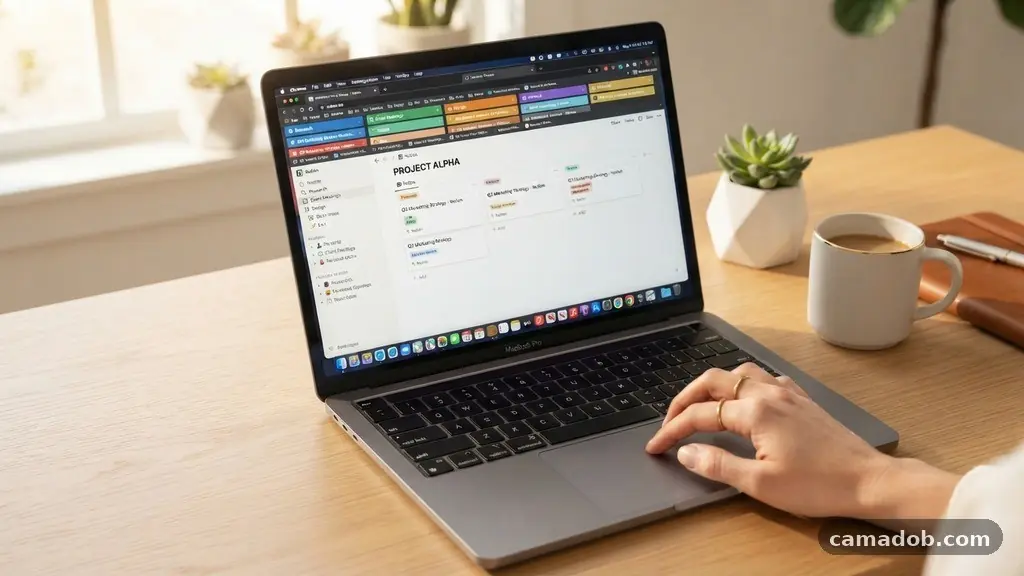
Digital clutter often starts with a single row of twenty open tabs. When you cannot see the titles of the pages you are working on, your cognitive load increases significantly.
Most modern browsers now offer tab grouping features that allow you to color-code and collapse related pages into single, manageable units. By right-clicking on a tab, you can select the option to add it to a new group, which keeps your workspace tidy without forcing you to close important research.
Automatic tab discarding is another essential setting for users who keep dozens of pages open at once. This function intelligently puts inactive tabs to sleep, freeing up your computer’s RAM and ensuring that your active tasks run without lag.
You can usually find this in the performance or system settings menu of your browser. By enabling this, you ensure that your hardware resources are directed toward the content you are currently viewing, making your browser feel much snappier.
Startup Page Customization
How your browser opens every morning sets the tone for your entire workflow. Many people default to the “New Tab” page, but you can choose to restore your previous session or open a specific set of URLs automatically.
Configuring these startup page settings saves you seconds every single time you sit down at your desk. If you consistently check the same three news sites or project management boards, pinning them to your startup routine prevents the need to search for them manually.
To customize this, head into your browser’s general settings and look for the “On startup” section. Selecting “Open a specific page or set of pages” allows you to paste the exact URLs you need to start your day.
This simple change reduces the friction of getting started and ensures you don’t get distracted by a blank screen or an unnecessary search engine portal. It is a small change, but it removes the decision-making process from your morning routine.
Enhance Privacy and Security Defaults
Privacy is not just about hiding data; it is about controlling the flow of information between your device and the websites you visit. Modern browsers have built-in security features that are often set to a moderate level, but you can easily elevate them to a “Strict” or “Enhanced” mode.
These settings block trackers that follow your behavior across different platforms, which creates a cleaner and more secure experience. You can read more about how major browsers handle data by visiting the Electronic Frontier Foundation’s privacy tools page.
Third-party cookie blocking is a crucial part of this security layer. By preventing advertisers from placing tracking files on your system, you reduce the number of irrelevant ads that follow you around the web.
This setting is typically found under the “Privacy and Security” tab in your settings menu. Enabling this prevents many cross-site tracking scripts from firing, which often results in faster page load times because your browser has to download less tracking code.
HTTPS-Only Mode
Security is paramount when you are entering sensitive information like credit card numbers or passwords. HTTPS-only mode forces your browser to use an encrypted connection for every website you visit, even if the site defaults to the older, unencrypted HTTP protocol.
If a site does not support a secure connection, the browser will warn you before you load the page. This protects your data from being intercepted by malicious actors on public Wi-Fi networks.
Enabling this feature is usually a simple toggle switch in the security settings area. Once turned on, you no longer have to worry about whether a connection is secure, as the browser handles the negotiation for you.
It provides a constant layer of protection that works silently in the background, allowing you to browse without constantly checking the address bar for the padlock icon. It is one of the most effective ways to ensure your data stays private.
Optimize Visuals and Accessibility
The way content is presented on your screen has a massive impact on your eye strain and focus. Dark mode has become a staple for many users because it reduces the harsh glare emitted by white backgrounds, especially in low-light environments.
Most browsers now offer a setting to force dark mode on all websites, even those that do not support it natively. This creates a more consistent visual experience throughout your day.
Reader view is another underutilized setting that strips away the distraction of sidebar ads, pop-ups, and navigation menus. It is ideal for long-form articles or technical documentation.
When you enter reader view, the browser re-formats the page into a clean, text-heavy layout that is much easier on the eyes. You can often adjust the font size, background color, and line spacing within this view to make the text perfectly legible according to your personal preference.
Handling Ads and Pop-ups
Aggressive advertising and intrusive pop-ups can turn a simple search into a frustrating game of whack-a-mole. While many users install third-party extensions, most browsers have native settings to block the most disruptive behaviors.
You can configure your browser to block pop-ups entirely by default, with an option to allow them only on sites you trust. This stops unexpected windows from hijacking your screen during a browsing session.
The following table summarizes the common browser categories and where you typically find these essential settings for a better experience:
| Setting Category | Common Menu Location | Primary Benefit |
|---|---|---|
| Privacy/Security | Privacy & Security Tab | Blocks trackers and malicious scripts |
| Performance | System or Performance Tab | Saves RAM with tab discarding |
| Appearance | Appearance or Theme Tab | Improves readability and reduces glare |
| Content/Site Settings | Site Settings Menu | Stops auto-play video and pop-ups |
Managing Download Locations
By default, most browsers save every file you download into the generic “Downloads” folder. Over time, this folder becomes a graveyard of temporary installers, images, and documents that are hard to sort through.
A better approach is to configure your browser to ask you where to save each file before it begins the download. This allows you to place files directly into their intended project folders, saving you the effort of moving them later.
You can enable this by going to the “Downloads” section in your settings. Once the “Ask where to save each file before downloading” option is active, you gain total control over your file system organization.
This simple habit prevents the accumulation of digital clutter and makes finding your files much easier. It is a foundational step in maintaining a clean and efficient computer workspace.
Hardware Acceleration and Performance
Hardware acceleration is a setting that offloads heavy graphical tasks from your main processor to your graphics card. For most modern computers, this is enabled by default and provides a smoother experience when watching videos or playing browser-based games.
However, if you are using an older machine or a laptop with limited resources, this setting can sometimes cause stability issues. If you find your browser crashing frequently, toggling this off can sometimes provide a more stable experience.
Conversely, if you have a powerful machine, ensuring this is enabled is vital for high-resolution video playback. You can check this setting under the “System” or “Advanced” menu in your browser.
Balancing this setting helps you get the most out of your hardware, ensuring that your browser performs at its peak. It is a technical tweak that pays dividends in how responsive your interface feels during high-demand tasks.
FAQ: Frequently Asked Questions
Do these settings work on mobile browsers?
Most of these settings are available on mobile versions of browsers like Chrome or Firefox, though the menus might be simplified. You will find that privacy and security options are the most consistent across desktop and mobile platforms.
Will blocking cookies break websites I visit?
Strictly blocking all cookies can occasionally prevent some sites from logging you in or saving your preferences. Most browsers allow you to set exceptions for sites you trust, which balances security with functionality.
What is the difference between Incognito mode and standard private browsing?
These terms are often used interchangeably, but they generally refer to the same function: a session where your history and cookies are not saved after you close the window. It is a quick way to browse without leaving a local footprint on your device.
Does changing these settings speed up my internet connection?
While these settings do not change your ISP speed, they can make your browsing feel faster by reducing the amount of data your browser needs to download. Blocking heavy trackers and ad scripts often results in significantly lower page load times.
Should I use multiple browsers for different tasks?
Many power users keep different browsers for distinct workflows, such as keeping a work-focused browser separate from a personal one. This helps keep your history and bookmarks organized and prevents work-related distractions from bleeding into your free time.
Conclusion
Optimizing your digital environment is an ongoing process that yields immediate results in how you interact with the web. By focusing on these 9 browser settings that can make your everyday browsing easier, you are not just changing a few check-boxes; you are reclaiming your attention and streamlining your digital life. Whether it is managing your tab overload or tightening your privacy defaults, every small adjustment contributes to a more productive and pleasant experience.
Start by picking one or two items from this list to change today, and notice how much smoother your daily tasks become. Your browser is your primary tool for navigating the modern world, so take the time to set it up in a way that respects your time and your privacy.