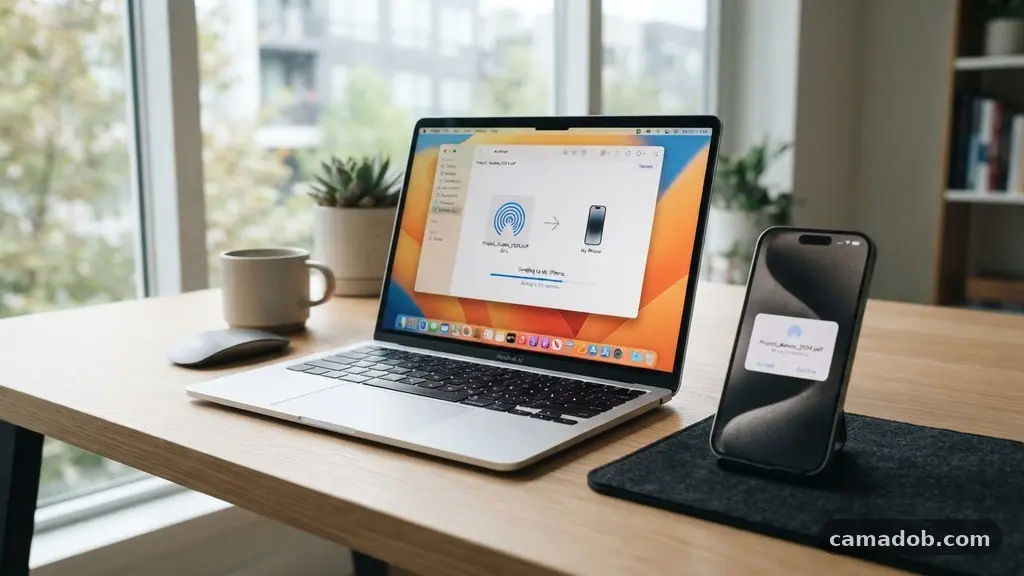
Transferring files between your phone and computer without a cable is often a matter of choosing the right software for your specific devices. Whether you are moving documents, high-resolution photos, or large video files, modern wireless protocols have made physical connections largely optional. By using built-in operating system features or third-party cloud services, you can move data across your devices in seconds.
Understanding the best methods for transfering Files Between Your Phone and Computer Without a Cable will save you time and help keep your digital workspace organized. This guide breaks down the most reliable ways to handle these transfers efficiently and securely.
Built-In Operating System Solutions
The most reliable way to move data is often through the tools already installed on your hardware. Apple’s ecosystem is particularly strong here, offering features that require zero setup for users invested in their hardware.
If you own an iPhone and a Mac, AirDrop is the gold standard for wireless file sharing. It uses a combination of Bluetooth to discover devices and Wi-Fi to create a peer-to-peer connection for fast data transfer.
For Windows users, the “Phone Link” application serves as a bridge for many Android devices. This software allows you to access your photos, text messaging history, and even some apps directly on your PC.
It is particularly helpful for quickly grabbing images captured on your phone without needing to email them to yourself. Microsoft has continuously updated this tool to make the integration feel more native to the Windows desktop environment.
Apple Ecosystem Integration
Apple users benefit from a highly curated experience when moving data between an iPad, an iPhone, and a Mac. Handoff is a feature that lets you start a task on one device and pick it up on another, but for static files, iCloud Drive is the primary engine.
When you save a file to your iCloud folder on an iPhone, it appears almost instantly on your Mac or iPad. This happens in the background, meaning you rarely have to manually trigger a sync.
Another powerful tool for Apple enthusiasts is the Universal Clipboard. This feature allows you to copy text or an image on your phone and paste it directly into a document on your computer.
It is essentially a bridge that connects the memory of your devices. While it is not intended for massive folders, it is perfect for moving snippets of data or single images during a busy workday.
Cross-Platform and PC Tools
When you are working with an Android device and a Windows PC, or even mixing Apple and non-Apple hardware, third-party utilities often bridge the gap better than native tools. LocalSend is a popular open-source utility that mimics the functionality of AirDrop across different operating systems.
It works by creating a local network connection, ensuring that your files never leave your home or office network. This is a significant privacy advantage for sensitive documents.
Another option is Snapdrop, which is an browser-based tool that requires no installation. You simply open the website on both your phone and your computer, and they detect each other automatically.
This is ideal for quick transfers when you are on a public computer or a machine where you lack administrative rights to install new software. It is a lightweight solution that handles most common file types with ease.
Traditional Cloud Storage Providers
Cloud storage remains the most versatile method for accessing files from anywhere, regardless of which device you currently have in your hand. Services such as Google Drive provide a massive amount of convenience by keeping your data synchronized across every platform.
You simply upload your photos or documents from your phone, and they are ready for you on your computer’s web browser or desktop app. This method is particularly useful for managing large collections of media that you might want to share with others later.
The following table provides a quick comparison of common storage solutions based on their typical free tier capacities and primary use cases:
| Service | Free Storage | Primary Strength |
|---|---|---|
| Google Drive | 15 GB | Universal access and search |
| iCloud | 5 GB | Deep Apple device integration |
| Microsoft OneDrive | 5 GB | Windows and Office suite sync |
| Dropbox | 2 GB | Fast, reliable file versioning |
Instant Web Sharing Utilities
Sometimes you just need to move one file immediately without creating a permanent account or setting up a cloud folder. Instant web sharing utilities are designed for this exact scenario.
Sites like WeTransfer or Send Anywhere allow you to upload a file and receive a unique link or a QR code. You can then scan that code or paste the link on your computer to download the file instantly.
These services are excellent for one-off transfers where you do not want to clutter your cloud storage. They are also useful for sending large files that might exceed email attachment limits.
Most of these platforms use encrypted links to ensure that your data remains private during the short time it exists on their servers. It is a highly efficient way to move data without the overhead of permanent storage management.
Security Considerations
When moving files wirelessly, it is important to be mindful of where those files are passing through. Public Wi-Fi networks are not always secure, and sending sensitive documents over an open connection can expose your data to interception.
If you are in a coffee shop or airport, it is safer to use a personal hotspot or a VPN to encrypt your traffic. Always prefer peer-to-peer tools that do not rely on a third-party server if you are handling confidential information.
You should also be cautious about which apps have permission to access your local network. Many file-transfer apps require this permission to discover other devices, but it is a good habit to revoke those permissions when you are finished.
Keeping your software updated is another critical step in maintaining security. Developers frequently patch vulnerabilities in file-sharing protocols, so running the latest version of your operating system is a strong defense.
Managing Large Media Libraries
Moving thousands of photos or high-definition videos requires a different approach than sending a single PDF. Cloud-based solutions can take a long time to sync if your upload speed is slow.
In these cases, using a local network transfer tool is much faster because the data does not have to travel out to the internet and back. You can find more information on data management and network speeds at the official FCC guide on broadband speeds.
If you have a massive library, consider setting up a local NAS (Network Attached Storage) or a simple home media server. This allows you to dump files from your phone directly to a local hard drive that is accessible to all your computers.
It eliminates the need for recurring monthly subscription fees to cloud providers. While it involves an upfront hardware cost, it is the most robust solution for heavy users who frequently move large files.
Common Troubleshooting Steps
If you find that your devices are not seeing each other, the most common culprit is that they are not on the same Wi-Fi network. Many wireless transfer protocols require both devices to be connected to the exact same router or access point. If you are using a dual-band router, ensure both your phone and computer are on the same frequency, such as 5GHz, to avoid connectivity issues.
Bluetooth interference can also cause problems for discovery-based tools like AirDrop. If a transfer fails, try toggling your Bluetooth and Wi-Fi off and back on again on both devices.
Sometimes a simple restart of the computer or phone clears out hung processes that prevent the handshake between devices. If you continue to have trouble, check your firewall settings on your PC, as they might be blocking the incoming connection from your phone.
Frequently Asked Questions
Why does my phone not see my computer?
The most likely reason is that the devices are on different networks. Double-check that your phone and your computer are connected to the same Wi-Fi router. Also, ensure that your computer’s firewall is not set to block local network discovery.
Are wireless transfers less secure than cables?
Wireless transfers can be just as secure if you use encrypted, peer-to-peer tools. However, you should avoid using public Wi-Fi for sensitive transfers. Always ensure you are using a secure, private network when moving private documents.
Which method is fastest for large video files?
Local network transfers are significantly faster than cloud-based methods for large files. Tools that use direct Wi-Fi connections, like LocalSend or dedicated file-transfer apps, will move data at the maximum speed your local network allows.
Do I need to pay for these services?
Most of the methods mentioned, such as AirDrop, Phone Link, and browser-based sharing tools, are free. Cloud storage providers offer free tiers, but you may need to pay if you exceed their storage limits.
Can I transfer files without any internet access?
Yes, you can. Tools that utilize peer-to-peer Wi-Fi or Bluetooth do not require an active internet connection. As long as the devices are in physical proximity and have their wireless radios turned on, they can communicate directly.
Successfully transfering Files Between Your Phone and Computer Without a Cable is a skill that simplifies your digital life. By moving away from physical connections, you gain the freedom to manage your content wherever you happen to be. Whether you choose the deep integration of a closed ecosystem or the flexibility of cross-platform apps, the key is consistency.
Start by trying one of the built-in methods mentioned, such as Phone Link or AirDrop, to see how they fit into your current workflow. As you become more comfortable with these tools, you will likely find that you rarely need a cable again. Feel free to experiment with different utilities to find the one that best suits your specific devices and needs.