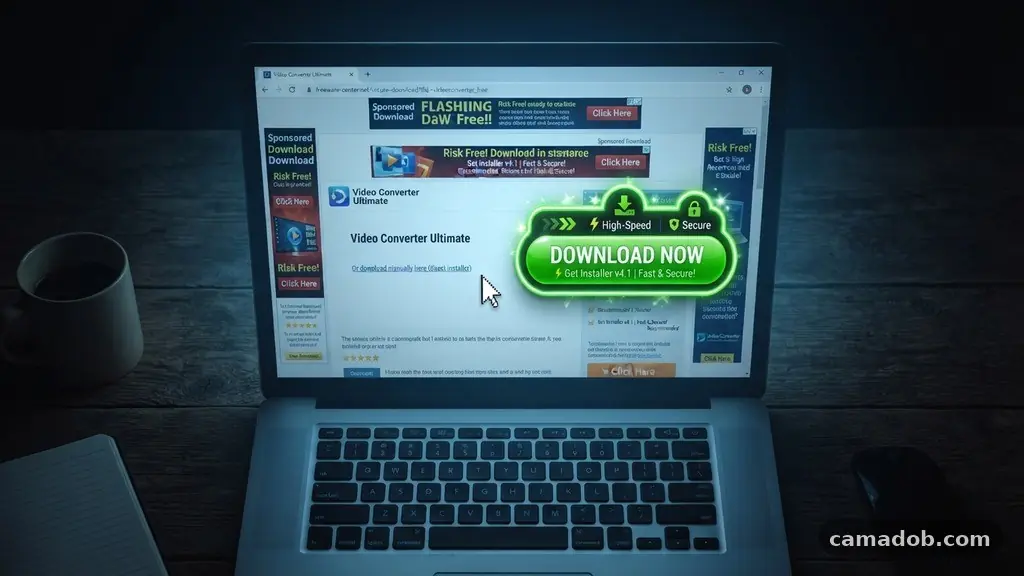
Learning the nuances of recognizing Fake Download Buttons on Software Websites is a critical skill for anyone browsing the internet today. These deceptive elements are designed to trick users into clicking malicious ads instead of the intended software installer. By understanding how to spot these traps, you can prevent malware infections and keep your computer running smoothly.
This article provides practical strategies to identify these threats before you click, ensuring your digital safety remains intact. Whether you are downloading a utility or a media player, knowing the difference between a legitimate link and an advertisement is the best defense against unwanted software.
Understanding the Visual Tactics of Deception
Deceptive buttons often hide in plain sight by mimicking the design language of the host website. They frequently appear as large, colorful rectangles that command your attention immediately after you land on a page.
To make matters worse, many of these elements are designed to look complete with corporate logos, familiar color schemes, and prominent placement. By mirroring the aesthetic of the actual software provider, these ads exploit user trust to drive clicks.
You should be particularly wary when a website displays multiple download buttons in rapid succession. Often, the real download link is tucked away in a corner or buried beneath a wall of text.
The fake ones, by contrast, are usually positioned at the very top of the page or directly in the center. If a button feels like it is screaming for your attention, it is likely an advertisement rather than a genuine file link.
Another common trick involves using animated graphics, flashing arrows, or countdown timers to create a false sense of urgency. These visual cues are meant to pressure you into clicking before you have a chance to evaluate the source.
Legitimate software developers rarely need to use high-pressure tactics to get you to download their products. If you see movement or blinking elements, stop and look closer at the surrounding text to see if it is labeled as an ad.
Analyzing the Destination and URL Structure
Hovering your mouse cursor over a button is one of the most effective ways to verify its authenticity. Most modern browsers display the destination URL in the bottom corner of your window when you hover over a link.
A legitimate download button will typically point to the software developer’s official domain or a trusted distribution platform. If you see a string of random characters, a shortened URL, or a domain that looks entirely unrelated, do not click.
These suspicious URLs often redirect through several ad-tracking domains before finally landing on a download page. This process is a classic sign of affiliate marketing or, worse, malware distribution networks.
Even if the final page looks professional, the path taken to get there is a major red flag. Always prioritize official company websites over third-party download aggregators.
If you are unsure about a specific URL, you can copy the link address and paste it into a safe sandbox tool or a link checker. These services analyze the target site without actually executing any code on your machine.
Taking this extra ten seconds to verify a link can save you hours of trouble dealing with browser hijackers or corrupted system files. Trust your instincts; if a link looks messy or suspicious, it almost certainly is.
Identifying File Extension Red Flags
The file extension of the download you are about to initiate provides a major clue about the legitimacy of the software. For Windows users, a standard installer should typically be an .exe or an .msi file.
On macOS, you should expect to see a .dmg or a .pkg file. If you click a download button and the browser prompts you to save an unexpected file type, cancel the process immediately.
Scammers often bundle their malicious payloads inside compressed archives or script files to bypass basic security filters. If you are expecting a small utility but the download button initiates a massive multi-gigabyte file, something is wrong. Conversely, if you are downloading a large creative suite and the button starts a tiny, mysterious executable, that is a clear warning sign.
You can cross-reference the expected file size and type by checking the official developer documentation or the “System Requirements” section of the site. Legitimate sites provide clear information about the nature of the file you are about to acquire.
If the site is vague about what you are downloading, treat the entire page with extreme suspicion. Always check the file name carefully in the “Save As” dialogue box before you commit to the download.
The Role of Browser Hijackers and Malicious Extensions
Many fake download buttons are designed specifically to install browser hijackers or unwanted toolbars. Once these programs are on your system, they can change your homepage, redirect your search queries, and track your browsing history.
They often hide in the “bundled” software that comes along with the main installer you thought you were getting. This is why it is vital to read every screen during the installation process, rather than just clicking “Next” repeatedly.
If your browser starts behaving erratically after a download, it is highly likely that a malicious script has taken root. You might notice new, unfamiliar icons in your toolbar or ads appearing on websites that never had them before. These symptoms are a direct result of falling for a deceptive download button.
To protect yourself, keep your browser extensions to a minimum and only install them from official stores. If you find an extension you don’t recognize, remove it immediately and clear your browser cache.
Regularly auditing your installed programs and extensions is an essential part of maintaining a secure computing environment. Prevention is always easier than the cleanup process required after a system compromise.
Comparing Legitimate vs. Deceptive Download Patterns
To distinguish between safe and dangerous sites, it helps to compare how they present their content. Legitimate software sites generally have a clean, consistent design that places the download button in a predictable location.
Deceptive sites, on the other hand, often crowd the page with unrelated advertisements that look like site navigation or system alerts. The following table highlights the key differences you should look for during your search.
| Feature | Legitimate Website | Deceptive Website |
|---|---|---|
| Button Placement | Consistent, logical, and clearly marked. | Hidden, multiple, or intrusive. |
| URL Source | Official developer domain. | Third-party ad networks or redirects. |
| Visual Style | Professional and non-distracting. | Flashing, animated, or high-contrast. |
| File Integrity | Clear file names and sizes. | Generic names like “setup.exe”. |
As you can see, the differences are often quite stark once you know what to look for. Legitimate developers prioritize user experience and transparency.
Malicious actors, by contrast, prioritize clicks and conversions at any cost. By keeping these distinctions in mind, you can quickly filter out the noise and find the actual file you need.
Verifying Digital Signatures and File Integrity
After you have downloaded a file, the final step in staying safe involves verifying digital signatures. A legitimate software vendor will sign their executable files with a cryptographic certificate.
This process ensures that the file has not been altered or tampered with since it was created. Windows and macOS have built-in security features that check these signatures, but you can also perform a manual check if you are skeptical.
To manually verify a file on Windows, you can right-click the file, select “Properties,” and look for a “Digital Signatures” tab. If the tab is missing or the certificate is issued by an unknown or untrusted entity, do not run the file. You can find more information about how these security measures work by visiting the National Institute of Standards and Technology, which provides extensive resources on digital security.
Using these built-in tools is one of the most effective ways to avoid running malicious code. Even if a website manages to trick you into clicking a fake button, the operating system’s security layers act as a final gatekeeper.
Never ignore a “Windows Protected Your PC” or “Unknown Developer” warning. These alerts are there to protect you from exactly the kind of deceptive software that fake download buttons distribute.
Common Indicators of Ad-Heavy Environments
Websites that rely heavily on fake download buttons often share specific characteristics that act as warning signs. You will often see a high density of “Free Update” or “Download Now” banners that appear completely disconnected from the actual software content. These sites often use aggressive pop-ups that block your view of the main content until you interact with them.
Pay attention to the language used on the page. If the text is filled with generic phrases like “Download now for best performance” or “Your driver is out of date,” it is almost certainly a generic ad template.
Legitimate software sites usually explain exactly what the software does, its version number, and its release date. If the information is vague, the link is likely just a gateway to an advertisement network.
Another indicator is the presence of “sponsored content” sections that are designed to look like editorial recommendations. These sections are often filled with links to software you did not ask for and do not need.
If you find yourself having to hunt for the actual software, you are likely on a site that prioritizes ad revenue over user safety. In such cases, it is safer to navigate away and search for the official source of the software directly.
Checklist for Safe Software Downloads
To summarize your defensive strategy, keep this checklist nearby whenever you are looking for new tools or updates. It covers the essential habits that help you avoid the pitfalls of deceptive web design. By following these steps, you can significantly reduce the risk of accidentally installing unwanted programs or malicious code on your system.
- Always verify the URL matches the official website of the software developer.
- Hover over buttons to inspect the destination link before clicking.
- Ignore animated, flashing, or high-pressure “Free Update” banners.
- Check the file extension to ensure it matches the expected type for your OS.
- Verify the digital signature of the installer before running it.
- Scan the downloaded file with a reputable antivirus program if you have any doubts.
- Read every prompt during installation to opt out of bundled software.
Following these steps turns the process of downloading software into a secure habit. You don’t have to be an expert to recognize fake download buttons on software websites; you just need to be observant. When in doubt, it is always better to search for the software on a different platform or go directly to the developer’s verified social media or official site.
Frequently Asked Questions
What should I do if I accidentally clicked a fake download button?
If you clicked a button and a file started downloading, do not run it. Delete the file immediately and empty your trash or recycle bin. If you already ran the file, disconnect your computer from the internet and run a full scan with a trusted security tool to check for threats.
Are all third-party download sites dangerous?
Not all of them are malicious, but many use aggressive advertising that can lead to confusion. It is always safer to download software directly from the developer’s official website. This ensures you are getting the latest version without any unwanted modifications or bundled software.
Why do websites use fake download buttons?
These buttons are a source of revenue for website owners through affiliate programs and ad networks. By tricking users into clicking, they earn money for each “install” or click, regardless of whether the software is actually useful or safe for the user.
How can I tell if a file has a valid digital signature?
On Windows, you can check the “Digital Signatures” tab in the file properties menu. If the software is signed, it will show the name of the organization that created it. If the signature is invalid or missing, it means the file has been modified or was not signed by the original developer.
Do ad-blockers help with fake download buttons?
Yes, a high-quality ad-blocker can hide many of these deceptive buttons entirely. By removing the ad elements from the page, you are left with the actual content, which makes it much easier to identify the correct link. However, you should still exercise caution even when using an ad-blocker.
Conclusion
Developing the habit of recognizing Fake Download Buttons on Software Websites is essential for maintaining a secure and stable computer. By staying vigilant, checking URLs, and verifying file signatures, you take control of your digital security. These simple, consistent actions act as a powerful barrier against the deceptive tactics used by malicious advertisers.
Remember that the safest path is always to source your software directly from the official developer. If you find yourself on a site that feels cluttered, aggressive, or confusing, trust your gut and walk away.
Your data and your system’s performance are worth the extra few minutes it takes to verify your sources. Stay observant, keep your security tools updated, and enjoy a safer experience as you continue exploring the vast possibilities of the internet.