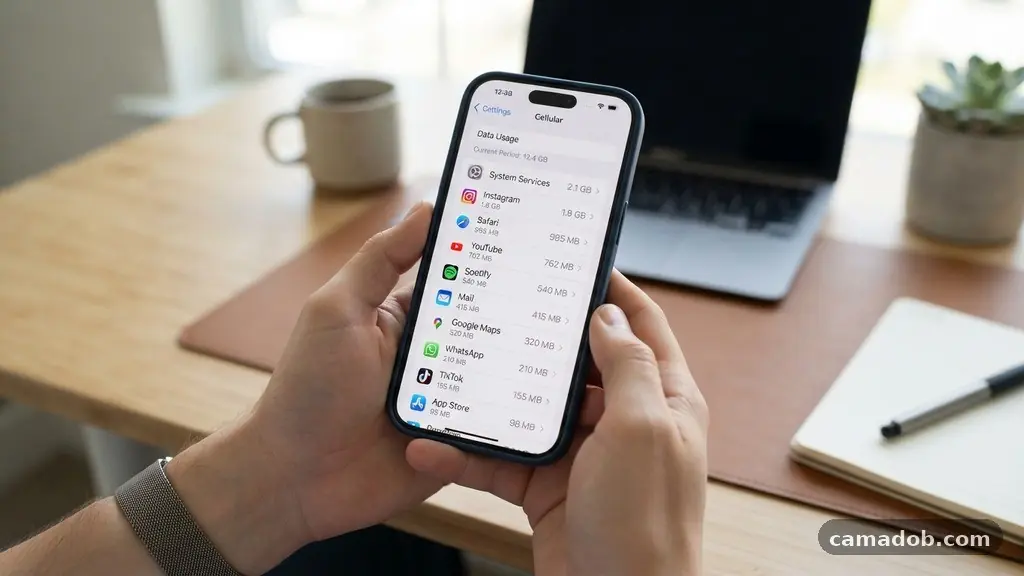
Learning the process of checking which apps are using the most mobile data is a vital skill for anyone trying to manage their monthly wireless budget. Most modern smartphones include built-in tracking tools that detail exactly how much bandwidth individual programs consume over specific time periods. By identifying high-consumption offenders, you can restrict background activity or adjust streaming quality settings to ensure your plan lasts until the next billing cycle.
Mastering these diagnostic steps prevents unexpected overage charges and helps you optimize your device’s performance. Understanding your digital footprint starts with these simple, accessible settings on your phone.
Locating Data Usage on iOS Devices
Apple provides a dedicated section within the Settings menu to track cellular consumption. You can access this by opening the Settings app and tapping on the Cellular or Mobile Data option.
Once inside, scroll down to the section labeled Cellular Data, where you will find a list of all your installed applications. Each entry displays the amount of data used since the last time you manually reset your statistics.
This list is typically ordered from the highest consumer to the lowest. If you have never reset your statistics, the numbers might reflect usage over several months or even years.
To get a clear picture of your current monthly consumption, scroll to the very bottom of this list and tap “Reset Statistics.” This action clears the slate, allowing you to monitor your data usage accurately starting from the current date.
Be aware that system services also appear in this list, often tucked away at the bottom under a separate header. These include essential background processes like iCloud syncing, software updates, and general network tasks.
While you might be tempted to restrict these, be careful, as doing so can interfere with core device functionality. Focus your optimization efforts on third-party apps that consume large amounts of data without providing constant value.
Monitoring Data Consumption on Android
Android devices offer a slightly different, often more granular, approach to data management. To start checking which apps are using the most mobile data on your phone, open the Settings app and navigate to Network & Internet.
From there, select SIMs or Mobile Network, followed by App Data Usage. This screen presents a clear graph showing your total data usage over a specific billing cycle.
The interface allows you to adjust your billing cycle dates so the usage stats align perfectly with your carrier’s monthly plan. Below the graph, you will see a list of apps sorted by the volume of data they have transferred during that window.
Tapping on any individual app reveals a breakdown of “Foreground” and “Background” usage. This distinction is crucial because it tells you whether the data was consumed while you were actively using the app or while it was sitting idle in the background.
If you find that an app is draining significant data in the background, you can toggle off the “Background Data” switch for that specific program. This prevents the app from fetching updates or syncing content when you aren’t actively interacting with it. It is a powerful way to extend your data plan without sacrificing the ability to use the app when you need it.
Understanding the Impact of Video Streaming
Video streaming services are almost universally the heaviest consumers of mobile data. Because high-definition video requires large amounts of information to be downloaded in real-time, apps like YouTube, Netflix, and TikTok can exhaust a limited data plan in just a few hours. When you are checking which apps are using the most mobile data, you will likely find these platforms at the top of your list.
Most of these applications include internal settings to limit data usage. For example, you can force an app to stream in 480p instead of 1080p or 4K.
This simple adjustment can reduce your data consumption by more than half while maintaining a watchable experience on a small screen. Many apps also offer a “Data Saver” mode that automatically optimizes quality based on your connection type.
Think of your mobile data as a finite resource rather than an infinite pipe. Every minute spent watching high-resolution clips while away from Wi-Fi subtracts from your total allowance.
If you frequently find yourself exceeding your limits, consider downloading content for offline viewing while you are connected to a stable home or office network. This strategy effectively eliminates the need to stream the same content twice over cellular networks.
Managing Background Sync and Refresh
Beyond active usage, many apps “phone home” to check for new messages, fetch advertisements, or update their feeds. This background activity happens silently, often without you ever realizing it is occurring.
Over a month, these small pings can add up to several gigabytes of lost data. You can find more information on how network traffic functions at the Federal Communications Commission website.
Social media apps are notorious for aggressive background refreshing. They want to ensure that as soon as you open the app, the latest content is waiting for you.
While this creates a responsive experience, it is inefficient for your data budget. Disabling “Background App Refresh” for social media and news apps is a highly effective way to curb unnecessary waste.
On iOS, you can manage this globally or on a per-app basis under General > Background App Refresh. On Android, the settings are usually found within the specific app usage page mentioned earlier.
By selectively turning this off for apps you don’t need instant notifications from, you can save significant amounts of data. You will still receive content when you manually open the apps, but you won’t be paying for data you didn’t ask for.
Comparing Data Consumption Patterns
To better understand how different types of apps affect your budget, it helps to look at the average consumption profiles of common categories. While individual usage varies wildly based on your habits, some general trends exist. Use the following table as a reference for how different activities impact your monthly totals.
| Activity Type | Data Consumption Level | Typical Impact |
|---|---|---|
| Text Messaging | Low | Negligible |
| Web Browsing | Moderate | Variable by site |
| Music Streaming | Moderate | ~50-150MB per hour |
| HD Video Streaming | Very High | 1GB – 3GB per hour |
| Cloud File Syncing | High | Dependent on file size |
As the table shows, there is a massive disparity between text-based communication and media-heavy consumption. If you are struggling to stay under your data cap, prioritize shifting video and audio streaming to Wi-Fi.
Browsing the web is generally manageable unless you are visiting sites with many auto-playing videos. Always check your specific app settings to see if they offer a “Low Data Mode” or “Wi-Fi Only” setting.
The Role of Cloud Services
Cloud storage and photo backup services are silent data hogs. Apps like Google Photos, iCloud, and Dropbox are designed to sync your files to the cloud the moment they are created. While this is excellent for data safety and recovery, it can be devastating for your mobile data plan if you are taking photos or videos on the go.
Most of these apps have a setting that restricts syncing to Wi-Fi only. You should ensure this is enabled if you are on a limited data plan.
If you find yourself in a situation where you need to sync a large file immediately, you can always toggle the setting off temporarily. However, remember to turn it back on afterward to avoid forgetting your backups.
If you use cloud services for work, consider the nature of your files. Large PDFs, presentations, or video projects can consume hundreds of megabytes in a single sync session.
By being mindful of when these files are being uploaded, you can maintain your productivity without depleting your data. Always check the status of your sync queue before leaving a Wi-Fi zone.
Common Culprits and Hidden Settings
Sometimes, the apps using the most data aren’t the ones you’d expect. For instance, a news app might have a “pre-load” feature that downloads entire articles and videos in the background while you are asleep. Another common culprit is a podcast app that automatically downloads new episodes of every show you follow, regardless of whether you have time to listen to them.
Review your app permissions and settings regularly. Look for keywords like “Auto-download,” “Pre-fetch,” and “Sync over cellular.” Turning these off is a quick way to reclaim your data.
Additionally, keep an eye on your device’s system-level data saver mode. This feature, available on both Android and iOS, creates a blanket restriction on background data for all apps that don’t need it to function.
It is also wise to monitor apps that you rarely use but keep on your phone. Sometimes, older apps or those with poor optimization can experience “runaway” data usage due to bugs.
If you notice an app you haven’t opened in weeks is at the top of your data usage list, consider deleting it. This clears up storage space and eliminates the risk of hidden background data leaks.
Developing Sustainable Data Habits
Maintaining a healthy data profile is not about restricting your phone usage until it becomes a burden. It is about understanding where your data goes so you can make informed choices. By checking which apps are using the most mobile data on a weekly basis, you develop a sense of which habits are “expensive” and which are “cheap” in terms of bandwidth.
Consider setting up alerts through your carrier. Most mobile providers allow you to set a usage threshold, such as 75% or 90% of your plan, which triggers a notification.
This acts as a safety net, giving you time to adjust your behavior before you hit the limit and face extra charges. Combine these alerts with your phone’s built-in usage tracking for the best results.
Remember that technology is meant to serve you, not the other way around. If you find yourself constantly stressing over megabytes, it might be time to look for a more generous plan or simply embrace the freedom of Wi-Fi. Use your phone’s reporting tools to show you the truth, and then use your settings to take control.
Frequently Asked Questions
Does turning off mobile data for specific apps affect their performance while on Wi-Fi?
No, restricting an app’s access to mobile data does not affect its functionality when you are connected to a Wi-Fi network. The app will behave normally as soon as it detects a stable Wi-Fi connection, allowing it to sync, update, and perform all its usual tasks without consuming your cellular allowance.
Why does my phone show high data usage even when I haven’t been using it?
This is almost always due to background activity, such as apps checking for notifications, syncing emails, or performing cloud backups. You can identify exactly which apps are responsible by checking the usage breakdown in your phone’s settings menu, where you can then toggle off background data for those specific programs.
Is it possible to see which specific websites are consuming my data?
Most standard mobile operating systems do not provide a breakdown of specific URLs visited within your browser. You can see the total data used by your browser app, but to track individual site usage, you would need to use specialized browser extensions or third-party monitoring apps that track web traffic in real-time.
How do I know if my data usage is normal for my plan?
“Normal” is subjective and depends entirely on your personal habits and the specific data cap of your plan. If you are consistently hitting your limit, you are likely a heavy media consumer, and you should focus on limiting video streaming and background syncing to keep your usage within a comfortable range.
Will resetting my data statistics delete any of my personal files or app data?
No, resetting your cellular data statistics is a harmless diagnostic action that only clears the counter for your network usage. It does not delete your photos, messages, app settings, or any other personal content stored on your device; it simply resets the “meter” so you can start tracking your usage from a fresh point in time.
Conclusion
Taking a few moments to understand your network consumption is one of the most effective ways to manage your monthly mobile expenses. By regularly checking which apps are using the most mobile data, you empower yourself to make smarter choices about how and when you access media on the go. You don’t have to be a technical expert to identify the high-consumption apps that are draining your plan.
Use the built-in tools on your device to pinpoint the offenders, adjust your background settings, and enjoy a more predictable experience. If you find yourself consistently hitting your limits, consider adjusting your streaming quality or relying on Wi-Fi for larger downloads. Staying informed is the best strategy for keeping your digital life connected without the surprise of extra costs.