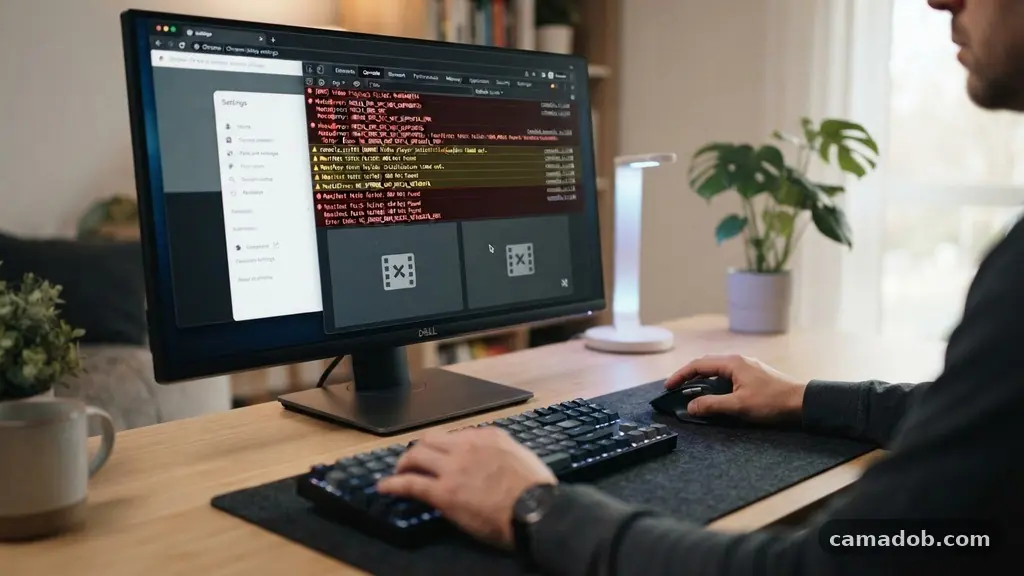
When you are trying to enjoy a movie or catch up on a lecture, nothing is more frustrating than a screen that refuses to load. Effectively fixing common video playback problems in your browser often comes down to identifying whether the bottleneck is your network, your software, or the site itself.
By systematically working through these potential points of failure, you can reclaim your viewing experience without needing advanced technical training. This article provides a clear roadmap to isolate these issues, restore your media streams, and ensure that your next session remains uninterrupted by stuttering frames or infinite loading icons.
Identifying the Root Cause of Playback Failures
The first step in fixing common video playback problems in your browser is determining the scope of the issue. If the video fails on every site you visit, the problem likely resides within your browser settings or your local network connection. Conversely, if the error is isolated to a single platform, the issue is almost certainly with the host server or an account-specific setting.
Start by testing a different video site, such as a major news outlet or a video hosting service, to see if the error persists. If the video plays perfectly elsewhere, you can rule out a major hardware fault or a total loss of internet connectivity. This simple isolation technique saves you from changing deep system settings that are unlikely to be the cause of a single-site error.
The Role of Browser Cache and Cookies
Your browser stores bits of data to help sites load faster, but these files can become corrupted over time. When cached data conflicts with the latest version of a website, you will often encounter playback errors, buffering loops, or blank screens. Clearing your cache and cookies is a standard maintenance step that resolves a surprisingly large percentage of media streaming issues.
To perform this, navigate to your browser’s privacy settings and look for the option to clear browsing data. Ensure you select “cached images and files” and “cookies and other site data” for the past 24 hours or the “all time” setting if the issue persists. Once you clear this data, you must restart your browser for the changes to take full effect.
Managing Extensions and Add-ons
Browser extensions, particularly ad-blockers and privacy shields, are frequent culprits when it comes to breaking video players. These tools often intercept the scripts that websites use to deliver video content, inadvertently blocking the stream along with the advertisements. If you are struggling with fixing common video playback problems in your browser, your extensions are the first place to look.
Try opening an “Incognito” or “Private” window to test the video; these modes typically disable all extensions by default. If the video plays correctly in private mode, you know an extension is interfering with your normal browsing session. You can then toggle your extensions off one by one to identify the specific culprit that is causing the conflict.
Hardware Acceleration and Graphics Drivers
Hardware acceleration is a feature designed to offload video processing from your CPU to your graphics card to improve efficiency. While this is helpful for most users, it can cause stuttering or black screens on systems with outdated or incompatible graphics drivers. Disabling this feature is a reliable way to test if your GPU is struggling to render the video feed correctly.
You can find the hardware acceleration toggle in your browser’s advanced settings menu. After switching it off, restart the browser and attempt to play the video again. If the playback quality improves, you should consider updating your graphics card drivers via the manufacturer’s official software to ensure your hardware is fully compatible with modern web standards.
Comparing Common Playback Symptoms
Different symptoms often point to different underlying technical issues. The following table provides a quick reference to help you diagnose what is happening based on how the video is failing to load.
| Symptom | Likely Cause | Recommended Action |
|---|---|---|
| Infinite Loading Spinner | Network latency or DNS issues | Check internet speed and restart router |
| Black Screen with Sound | Hardware acceleration conflict | Disable hardware acceleration in settings |
| “Video Unavailable” Error | Regional restrictions or VPN | Disconnect VPN or check site permissions |
| Stuttering or Dropped Frames | High CPU usage or too many tabs | Close unnecessary tabs and background apps |
Internet Connection and Network Stability
Even if your connection seems fast, intermittent packet loss can cause video streams to hang. Streaming video requires a consistent, steady stream of data rather than just high peak speeds. If your signal is weak or your router is overwhelmed, you will notice the player constantly trying to re-buffer the content.
Check your connection stability by running a speed test through a trusted source like the Federal Communications Commission’s broadband tool. If your speeds are significantly lower than what you pay for, try moving closer to your wireless access point or switching to a wired Ethernet connection. Using a wired connection eliminates the interference common in Wi-Fi environments and provides a much more stable environment for high-definition streaming.
Browser Updates and Compatibility
Web developers constantly update their video players to use the latest HTML5 standards. If you are running an outdated version of your browser, it may lack the necessary codecs to decode the video stream correctly. Ensuring your browser is fully updated is a foundational step in fixing common video playback problems in your browser.
Most modern browsers update automatically, but you can force a check by visiting the “About” section in your settings menu. If you are using an older operating system that no longer supports the latest browser versions, you may find that many video platforms have stopped working entirely. In such cases, upgrading your OS or switching to a more modern, lightweight browser is often the only permanent solution.
Essential Steps for Troubleshooting
If you have tried the methods above and are still stuck, follow this checklist to ensure you haven’t missed any basic configuration errors. These steps cover the most frequent user-side oversights that impact video performance.
- Check for pending OS updates that might be affecting system-wide media drivers.
- Disable any VPN or proxy services, as these often slow down or block video delivery.
- Verify that your system date and time are accurate, as incorrect timestamps can break secure connections.
- Close resource-heavy background applications like video editors or cloud storage sync tools.
- Check if the video site itself is down by visiting a service status monitor.
Frequently Asked Questions
Why does my video play audio but show a black screen?
This is almost always related to hardware acceleration or incompatible graphics drivers. When the browser tries to hand off the video rendering to your GPU and the driver fails, the screen goes black while the audio continues. Disabling hardware acceleration in your browser settings is the most effective way to confirm this is the cause.
Can my antivirus software block video playback?
Yes, some strict antivirus or firewall settings can interpret encrypted video streams as suspicious traffic. If you suspect this, try temporarily disabling your security software for a few minutes to see if the video loads. If it does, you may need to add an exception for your browser in your security suite’s settings.
Does using a VPN cause video buffering?
VPNs add an extra layer of encryption and route your traffic through a secondary server, which naturally increases latency. If your VPN server is under heavy load or physically located far from your actual location, you will experience significant buffering. Try disconnecting the VPN to see if the video quality improves immediately.
How many tabs should I have open for smooth streaming?
There is no specific number, but every open tab consumes RAM and CPU cycles. If your computer has 8GB of RAM or less, having dozens of tabs open can starve your browser of the resources needed to decode high-resolution video. Closing unused tabs is a quick way to free up processing power for your active video stream.
What if the video works in one browser but not another?
This usually indicates that one browser has a configuration issue, a conflicting extension, or an outdated cache. If a video plays in Chrome but not in Firefox, you should clear the cache and disable extensions in Firefox to match the clean environment of the working browser. Browser-specific settings are often the root cause of these discrepancies.
Maintaining a Smooth Viewing Experience
Successfully fixing common video playback problems in your browser is a skill that saves time and reduces frustration over the long term. By keeping your browser updated, managing your extensions carefully, and ensuring your hardware acceleration is tuned correctly, you create a stable foundation for all your media needs. Most playback errors are temporary and simple to resolve with a bit of systematic testing.
Remember that the vast majority of streaming issues are caused by local configuration conflicts rather than permanent damage. Whenever you encounter a new error, start by isolating the problem to a specific browser or site before diving into more complex system changes. With these diagnostic habits in place, you can spend less time troubleshooting and more time enjoying your favorite content online.