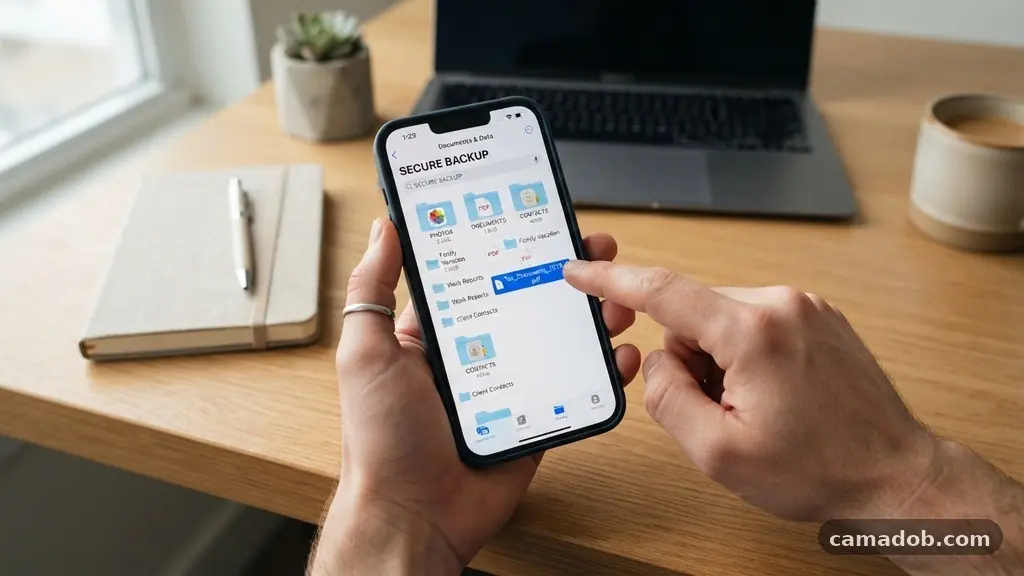
When you decide it is time for an upgrade, perhaps to enjoy better battery life or a faster processor, the process of backing Up Important Files Before Replacing Your Phone should be your absolute first priority. Losing precious memories or critical work data is a stressor you can easily avoid with a bit of systematic preparation.
By following a structured approach to data migration, you ensure that your digital transition is smooth, secure, and complete. This process protects your personal history and professional assets, allowing you to move into your new device with total peace of mind.
To address the most immediate concern, the fastest way to save your data is to use the native cloud backup services built into your operating system. For iPhone users, this means triggering an iCloud backup via the settings menu, while Android users should utilize Google One to sync photos, contacts, and app data to the cloud.
You should verify that these backups have completed successfully by checking the timestamp in your account settings before you wipe or trade in your old device. If you have massive amounts of data, such as high-resolution videos, local backups to a computer using iTunes or Finder are often more reliable and faster than relying solely on a wireless connection.
Understanding the Scope of Your Data
Before you initiate any transfer, you need to audit what is currently stored on your smartphone. Many users mistakenly believe that everything is in the cloud, but local storage often holds hidden gems like offline documents, specific app caches, and downloaded media.
Take a moment to browse your document folders and gallery to see if there are items that haven’t synced. If you find files that aren’t appearing in your cloud storage, manually move them to an external drive or a secondary cloud service like Dropbox or Google Drive.
Securing Specific Data Categories requires a methodical approach rather than a mass-dump strategy. Start by identifying the items that hold the most sentimental or functional value. This includes your photo library, which is usually the largest storage consumer, and your contact list.
Once you have identified these, cross-reference them against your current sync settings to see if they are already protected. If the sync status is lagging, force a refresh or use a wired connection to bridge the gap between your phone and your computer.
Managing Messages and Communication History
One of the most common points of failure during a phone switch is the loss of important text message threads. While standard SMS and iMessage histories often migrate through cloud backups, encrypted messaging apps require extra attention.
Apps like Signal store chat history locally on your device for security reasons. You must manually initiate a backup within the app’s settings and transfer that specific file to a new device or a secure storage location to retain your conversation history.
If you rely on multiple platforms for communication, ensure each one has a distinct strategy for data preservation. For instance, WhatsApp has its own internal cloud backup toggle that exists independently of your phone’s system backup.
Check these individual app settings to confirm that your chat history is being uploaded to your preferred cloud provider. Without these specific app-level backups, you risk losing years of correspondence even if your phone settings are otherwise perfectly configured.
Handling Account Credentials and Security Keys
Moving to a new phone can be a nightmare if you are suddenly locked out of your financial, email, or social media accounts. Before you reset your old device, you must ensure you have master passwords for your password managers and any relevant recovery codes.
Many two-factor authentication apps, such as Google Authenticator or Authy, require you to manually export your accounts or enable cloud syncing within the app itself. Failure to do this will leave you unable to access essential services on your new hardware.
Security keys and hardware tokens are another layer of protection that requires careful handling. If you use a physical YubiKey or similar device, ensure it is ready to be paired with your new phone. You should also verify that your email recovery addresses and phone numbers are up to date across all your sensitive accounts.
Having a secondary way to verify your identity is essential if your new phone does not immediately recognize your biometric data. You can find more information on securing your digital identity through official cybersecurity resources.
Preserving Device Settings and App Configurations
While content like photos and messages is obvious, your device settings and app configurations are what make the phone feel like yours. This includes your custom wallpaper, keyboard shortcuts, accessibility settings, and home screen layout.
Most modern operating systems offer a “full device backup” that captures these nuances, but it is not always a perfect mirror. You may still need to re-log into banking apps, streaming services, and professional tools that prioritize session security.
Bluetooth pairings are a common oversight during the transition process. Your car, wireless headphones, and smart home devices will need to be re-paired with your new phone once it is set up.
While some settings migrate, the hardware handshake for Bluetooth is almost always local to the specific device. Take a screenshot of your most critical paired devices so you know exactly what to look for when you start the setup process on your new handset.
Comparing Backup Methods
Choosing the right backup method depends on your data volume and your comfort level with technology. Cloud-based solutions are generally the most convenient, but they can be slow if you have a massive library of 4K videos.
Local backups provide a faster, more controlled experience but require a computer and enough available disk space. The table below outlines the primary differences between these two common approaches to help you decide which is best for your specific situation.
| Feature | Cloud Backup | Local Backup (Computer) |
|---|---|---|
| Speed | Dependent on Wi-Fi | High (Wired) |
| Security | Encrypted by provider | Encrypted by user |
| Convenience | Automated | Manual |
| Capacity | Limited by plan | Limited by hard drive |
Cleaning Up Before the Handover
Once your backups are verified, you should perform a final cleanup of your old device. This is the stage where you ensure that no personal data remains on the hardware before you trade it in or pass it on to a family member.
Start by signing out of your iCloud, Google, or Samsung account to disable activation locks. These locks can prevent a new owner from using the device, which is a major hurdle if you are selling or recycling the phone.
After signing out, perform a factory reset to wipe all remaining data. This process is irreversible, so please do not trigger it until you have confirmed that your backup is accessible and complete.
You can test your backup by signing into your cloud account on a computer or tablet to see if your photos and files appear as expected. Once you see your files in the cloud interface, you can proceed with the factory reset with total confidence.
Frequently Asked Questions
How can I tell if my backup is actually finished?
Most operating systems provide a timestamp in the backup menu that indicates the last time a sync was successful. You should look for a recent date and time that matches your current session. If the status says “pending” or shows an old date, force a manual sync by tapping the “Back Up Now” button.
What should I do if I don’t have enough cloud storage?
If you hit your storage limit, you have two main options: purchase a temporary storage upgrade for a month or use a local backup method. Using a computer with a large hard drive allows you to bypass cloud limits entirely. You can always cancel the cloud subscription after you finish your transfer.
Will my apps automatically download to the new phone?
Yes, most modern smartphones will restore your apps from the cloud during the initial setup phase. However, you will likely need to sign into each individual app again for security reasons. Some apps, especially those with high security, may require you to re-authenticate using a code sent to your email or your old device.
Is it safe to store my backups on a public computer?
It is generally not recommended to store personal backups on a public or shared computer. If you must use one, ensure you are using an encrypted hard drive or a secure cloud service that you can sign out of immediately. Never leave your data files on the local hard drive of a machine you do not control.
Final Thoughts on Digital Transitions
Transitioning to a new device is an exciting milestone, but it requires a disciplined approach to ensure your digital life remains intact. By prioritizing the process of backing Up Important Files Before Replacing Your Phone, you eliminate the risk of permanent data loss. Remember that the goal is not just to copy files, but to ensure they are accessible, secure, and ready for your new environment.
Take your time, verify your backups, and enjoy the experience of setting up your new technology with the peace of mind that your memories and work are safe. If you run into any snags, don’t hesitate to consult the official support pages of your device manufacturer for model-specific troubleshooting.