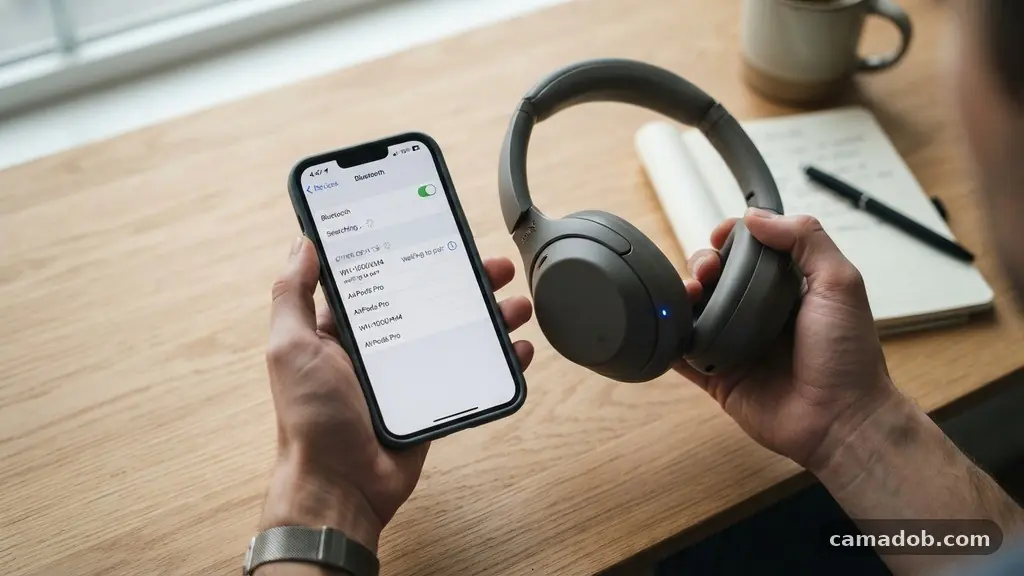
When you need to know what to check when Bluetooth devices refuse to connect, the troubleshooting process often centers on power cycles and signal interference. Most connection failures stem from simple synchronization errors or background software conflicts that prevent two devices from “handshaking.” By methodically testing hardware status, clearing old pairing data, and managing your physical environment, you can resolve the vast majority of wireless communication issues.
This article outlines the specific steps you should take to restore your connectivity, helping you identify whether the problem lies with your smartphone, your peripheral, or the invisible environment surrounding them. You will gain the technical clarity needed to fix these interruptions effectively and keep your devices running smoothly.
Verify Power and Visibility Status
The most common reason for a failed connection is simply that one of the devices is not actually in pairing mode. Many users assume that because a device is turned on, it is automatically broadcasting its availability to new hardware.
However, most modern Bluetooth peripherals require you to hold down a specific button for several seconds until an LED indicator begins to flash. This visual cue is your first confirmation that the device is actively searching for a host.
Check if your secondary device, such as a set of headphones or a wireless mouse, is currently linked to another piece of equipment. Bluetooth protocols often prioritize known connections; if your headphones are already linked to your tablet, they will refuse to acknowledge your smartphone. You must manually disconnect or turn off the Bluetooth setting on the secondary device to free up the connection.
Ensure both devices have sufficient battery life to maintain a stable wireless link. Many modern gadgets enter a “low power mode” when the battery drops below 10% or 15%, which intentionally disables non-essential features like Bluetooth to preserve remaining energy. If your device is struggling to hold a signal, plug it into a power source and try the pairing process again.
Clear Existing Cache and Pairing Records
If a device has been paired previously but refuses to connect now, the software records on your phone or computer might be corrupted. This is a frequent issue after a major operating system update. You should navigate to your Bluetooth settings menu and locate the device in the list of “Previously Paired” or “Saved” items.
Select the option to “Forget This Device” or “Unpair” to purge the old configuration files from your system. Once you have cleared the record, restart your host device to ensure the software clears its temporary memory cache. This forces the system to treat the peripheral as an entirely new piece of hardware, effectively bypassing any lingering handshake errors from the previous session.
Re-enter pairing mode on the peripheral after the system reboot is complete. By starting from a clean slate, you eliminate potential conflicts caused by outdated security keys or mismatched handshake protocols. This is often the most effective way to solve persistent connection drops that occur despite the hardware appearing to be functional.
Analyze Physical Interference and Range
Bluetooth operates on the 2.4GHz radio frequency, which is the same band used by many Wi-Fi routers and microwave ovens. If you are standing directly next to a high-traffic router, the electromagnetic noise can overwhelm the low-power signal of your Bluetooth connection. Try moving your devices into a different room or further away from active Wi-Fi access points to see if the signal stabilizes.
Obstructions like concrete walls, large metal objects, or even human bodies can significantly degrade signal strength. Bluetooth is designed for personal area networks, meaning its effective range is typically limited to about 30 feet in an open environment. If you are attempting to connect through a wall or across a large room, the signal may be too weak to complete the initial authentication process.
Keep your devices within a few inches of each other during the initial pairing phase. Once they have established a secure link, you can move them to your preferred distance. This proximity ensures that the signal strength is high enough for the devices to exchange the necessary encryption keys without packet loss or interruption.
Compare Connection Troubleshooting Steps
Different types of hardware require slightly different approaches when you are troubleshooting. The following table highlights the most common failure points across different device categories.
| Device Category | Primary Failure Point | Recommended Action |
|---|---|---|
| Wireless Headphones | Dual-connection conflict | Disable Bluetooth on other nearby devices |
| Smart Watches | Outdated companion app | Update app via App Store or Play Store |
| Keyboards/Mice | Low battery voltage | Replace batteries or use USB charging |
| Car Audio Systems | Device limit exceeded | Remove old phones from car memory |
Manage Software and Firmware Updates
Software bugs are a frequent culprit when you need to know what to check when Bluetooth devices refuse to connect. Manufacturers regularly release firmware updates for wireless peripherals to patch security vulnerabilities and improve connection stability. Check the official app or the manufacturer’s website for your specific device model to see if a newer firmware version is available for download.
Your host operating system, whether it is Windows, macOS, Android, or iOS, also requires periodic updates to its Bluetooth stack. If your system software is several versions behind, it may not be compatible with the newer Bluetooth Low Energy (BLE) standards used by modern accessories. Always ensure your host device is running the latest stable release provided by the manufacturer.
If you are using a custom ROM or an older computer, consider downloading the latest drivers from the hardware developer’s website. You can find detailed technical information regarding these protocols on the official Bluetooth technology overview page. Keeping these drivers updated ensures that your hardware can communicate using the most efficient protocols available.
Toggle System Settings and Services
Sometimes the Bluetooth service on your computer or phone simply stops responding to user input. Instead of restarting the entire device, you can often reset the service by toggling the Bluetooth switch off and on again. Wait at least five seconds between turning it off and turning it back on to ensure the service fully terminates and restarts its background processes.
On Windows machines, you can use the Services management console to restart the Bluetooth Support Service. This service acts as the bridge between your hardware and the operating system. If this specific service is hung or set to “Manual” instead of “Automatic,” your computer will fail to detect or connect to any wireless peripherals.
If you are on a smartphone, putting the device into Airplane Mode for ten seconds is a quick way to cycle all wireless radios, including Wi-Fi, cellular, and Bluetooth. This action forces the phone to re-initialize its entire communications suite. It is a highly effective way to clear minor software glitches without losing your data or current work.
Check for Device Pairing Limits
Many Bluetooth peripherals, especially budget-friendly speakers and headsets, have a hard limit on how many devices they can remember. Once this limit is reached, adding a new device forces the peripheral to overwrite the oldest entry in its memory. This can lead to a situation where your device appears to be connected but cannot transmit audio or data.
If you suspect your device has reached its memory limit, you may need to perform a factory reset. This usually involves holding a combination of buttons, such as the Volume Up and Power buttons, for a specific duration. Consult your user manual for the exact sequence, as this varies wildly between manufacturers and models.
Factory resetting the peripheral clears all previous pairing history. Once the reset is complete, the device will return to a “factory fresh” state, making it much easier for your phone or computer to identify and connect. This is the “nuclear option” for persistent issues and should be performed only after you have tried simpler troubleshooting steps.
Common Troubleshooting Checklist
When you are in the middle of a frustrating connection loop, keep this list of priority actions nearby. Following these steps in order will save you significant time.
- Turn off Bluetooth on all other nearby devices to prevent auto-connecting.
- Ensure the peripheral is in actual “pairing mode” rather than just “on.”
- Delete the existing pairing entry from your phone or computer settings.
- Move the devices within 3 feet of each other to maximize signal strength.
- Toggle the Bluetooth radio off and on again on the host device.
- Restart the host device to clear the temporary software cache.
- Check for and install any pending firmware updates for the peripheral.
- Perform a factory reset on the peripheral if all other steps fail.
Frequently Asked Questions
Why does my device show up in the list but fail to connect?
This usually happens because of a handshake error or an authentication mismatch. Your phone knows the device exists, but the security keys being exchanged are being rejected. Deleting the device from your settings and re-pairing it from scratch almost always resolves this specific handshake failure.
Can too many Bluetooth devices in one room cause connection drops?
Yes, signal congestion is a real issue in modern homes. If you have a smart home setup with dozens of sensors, speakers, and bulbs, the 2.4GHz band can become crowded. Turning off unused Bluetooth devices or moving your primary devices closer to each other can mitigate the interference caused by this congestion.
Does my phone’s battery level impact Bluetooth performance?
Many smartphones implement aggressive power-saving features when the battery is low. This can result in intermittent Bluetooth connectivity or an inability to maintain a high-bandwidth connection for audio streaming. Always keep your phone charged above 20% when you are relying on a stable wireless connection.
How do I know if my device is broken or if it is just a connection issue?
The best way to test this is to try pairing the peripheral with a completely different host device, such as a friend’s phone or a different laptop. If the device fails to pair with multiple hosts, the internal Bluetooth radio in the peripheral is likely faulty. If it connects perfectly to another device, the problem is definitely isolated to your original phone or computer.
Is it necessary to use a specific app to connect my device?
Some modern smart devices, particularly health trackers and high-end headphones, require a proprietary app to complete the initial setup. If you are trying to connect through the system Bluetooth menu instead of the official app, the device may refuse to pair for security reasons. Always check the manufacturer’s manual to see if a companion app is mandatory for the initial handshake.
The process of fixing wireless communication issues is usually a matter of systematic elimination. By understanding what to check when Bluetooth devices refuse to connect, you can navigate these common technical hurdles with confidence. Whether it is clearing out stale cache files, removing physical interference, or performing a factory reset on your hardware, most problems have a straightforward solution.
If you have exhausted these steps and still face trouble, consider checking the manufacturer’s support forums for model-specific quirks. Wireless technology is designed to make our lives easier, and with a little patience and the right diagnostic approach, you can restore that convenience quickly. Take a moment to test your connections today, and enjoy the freedom of a reliable, cable-free environment.