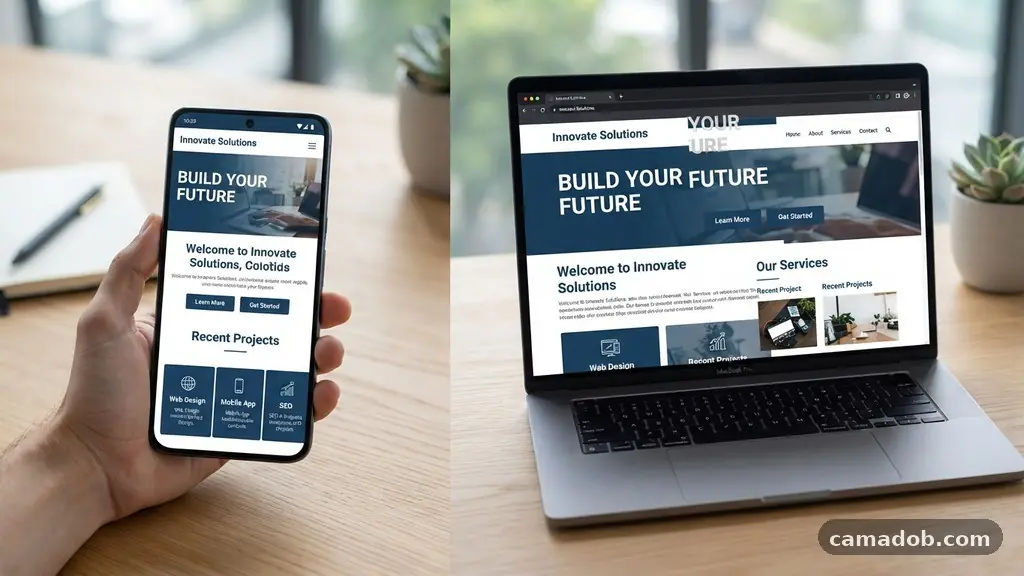
When you encounter a site that functions perfectly on your mobile device but breaks on your computer, the experience is often frustrating and confusing. You might find yourself staring at an unscaled mobile layout, or worse, unstyled HTML that looks like a relic from the early internet. This discrepancy usually stems from how modern web development handles different screen sizes and device capabilities.
Learning about fixing Websites That Work on Your Phone but Not on Your Laptop is essential for anyone who relies on specific tools for productivity. By understanding the underlying conflict between mobile and desktop rendering, you can often resolve these display issues with just a few simple browser adjustments.
Understanding the Core Conflict
The primary reason for this behavior lies in how developers prioritize mobile-first design. Many modern sites are built with CSS media queries that specifically target smaller screens. When a desktop browser like Chrome or Safari interprets these instructions, it might contain conflicting rules that clash with your larger monitor settings.
This often leads to a situation where the site thinks it is still on a tiny screen. Consequently, it forces a narrow column layout that looks stretched or broken on a widescreen display. The browser is essentially following a set of instructions meant for a device that fits in your pocket, not one that sits on a desk.
Checking for Viewport Meta Tag Misconfigurations
A common culprit behind these display errors is a problem with the viewport meta tag. This tiny piece of code tells a browser how to scale the content to fit the screen width. If the tag is missing or configured incorrectly, the site might default to a mobile-only zoom level.
When you load the page on a desktop, the browser fails to detect the intended scale. You might see everything zoomed in far too close or text that refuses to wrap within the window. This is a classic case of the site failing to recognize the desktop environment’s capabilities.
The Role of CSS Media Queries
CSS media queries are the logic gates that tell a website how to look on different hardware. They check parameters like width, height, and orientation before applying specific styles. If the developer made a mistake in these breakpoints, the desktop version of the site might never trigger.
You can often see this in action by manually resizing your browser window. If you slowly shrink your Chrome or Safari window, does the layout suddenly “snap” into the correct, readable version? If it does, the CSS media queries are likely failing to detect your full-screen resolution correctly.
Identifying Non-Responsive Containers
Some web elements are designed with fixed pixel widths that do not adapt to the environment. These non-responsive containers act like rigid boxes that refuse to shrink or grow, regardless of your screen size. On a mobile phone, these boxes might fit perfectly, but on a laptop, they leave massive gaps or hide content off-screen.
This is particularly common on older websites that haven’t been updated in several years. The layout is effectively “hard-coded” for a specific width, making it impossible for the browser to adjust. You might need to use a browser extension to override these rigid settings if you absolutely must view the content.
Clearing Cache and CDN Issues
Sometimes, the problem isn’t the code itself but how it is delivered to your machine. A CDN cache might be serving you an outdated version of the site’s stylesheet that was originally intended for a mobile-only test. Your browser stores these files locally to speed up loading times, which can lead to persistent errors.
Performing a hard refresh is your first line of defense here. In many cases, clearing the cache for that specific domain forces the server to send the latest, correct files. This is a common part of the Step-by-Step Troubleshooting Process for web developers and power users alike.
Testing with Different Browsers
Operating system rendering differences can also play a significant role in how a page displays. A site might be heavily optimized for a specific mobile engine but poorly tested on desktop versions of Safari or Firefox. If a site works on your phone but fails on your laptop, try opening it in an entirely different browser.
If the site renders perfectly in one browser but fails in another, you have isolated the issue to the rendering engine. This often happens when a site uses experimental features that are supported on mobile but not yet fully implemented on desktop. You can learn more about how browsers interpret these standards through the official W3C web design standards.
Managing Script Blockers and Extensions
Many users employ ad blockers or privacy-focused script blockers to improve their browsing experience. While these tools are useful, they can sometimes over-correct by blocking critical layout scripts. If a site relies on JavaScript to build its desktop interface, a script blocker might be preventing that logic from running.
Try disabling your extensions one by one while on the problematic site. If the layout suddenly corrects itself, you have found the source of the interference. You can then whitelist that specific site to ensure it continues to work while keeping your protection active elsewhere.
Technical Comparison of Rendering Issues
To better understand why these discrepancies occur, it helps to look at how different factors contribute to the failure of a webpage. The following table highlights common technical barriers that prevent a site from showing its desktop view correctly.
| Technical Factor | Impact on Desktop View | Common Fix |
|---|---|---|
| Faulty Media Queries | Stuck in mobile layout | Resize window or clear cache |
| Viewport Meta Tag | Incorrect zoom/scaling | Check browser zoom settings |
| Script Blockers | Missing dynamic elements | Disable extensions for site |
| CDN Cache | Old styling persists | Perform a hard refresh |
Step-by-Step Troubleshooting Process
When you encounter a site that refuses to show its desktop version, follow this logical flow to isolate the problem. Start with the simplest solutions before moving into more advanced technical adjustments.
- Perform a hard refresh (Ctrl+F5 or Cmd+Shift+R) to bypass the local cache.
- Toggle your browser’s “Desktop Site” or “Request Desktop Site” settings if available.
- Disable all browser extensions to see if a script blocker is causing the conflict.
- Test the URL in an Incognito or Private window to rule out user-specific data.
- Check if the site has a dedicated mobile subdomain (like m.example.com) that you are being forced into.
- Inspect the page source for errors if you are familiar with developer tools.
FAQ
Why does my laptop show the mobile version of a website?
Your browser might be sending a “User Agent” string that identifies your machine as a mobile device, or the website’s code has faulty media queries that misinterpret your screen resolution. This causes the site to serve you the mobile-optimized assets instead of the desktop layout.
How can I force a website to show the desktop version?
Most modern browsers have a “Request Desktop Site” option in the main menu or developer tools. You can also try clearing your cookies and cache for that specific site to remove any stored preferences that might be forcing the mobile view.
Are there browser extensions that can fix this?
Yes, there are “User-Agent Switcher” extensions that allow you to change how your browser identifies itself to websites. By telling the site you are using a standard desktop browser, you can often trigger the correct layout automatically.
What if the website is just poorly built?
If the site’s code is fundamentally broken, there may be nothing you can do on your end to fix it. If the developer didn’t include responsive CSS for larger screens, the site will remain unstyled or broken on your laptop until they update their code.
Conclusion
Fixing Websites That Work on Your Phone but Not on Your Laptop is often a matter of clearing out old data or adjusting how your browser communicates with the server. Whether you are dealing with aggressive script blockers, outdated cache files, or simple media query errors, the solution is usually within your reach. By taking a systematic approach, you can restore a functional, readable experience on your desktop.
If you find that the issue persists across all websites, ensure your browser is fully updated to the latest version. Taking these small steps will ensure your browsing remains smooth, regardless of the device you choose to use.